
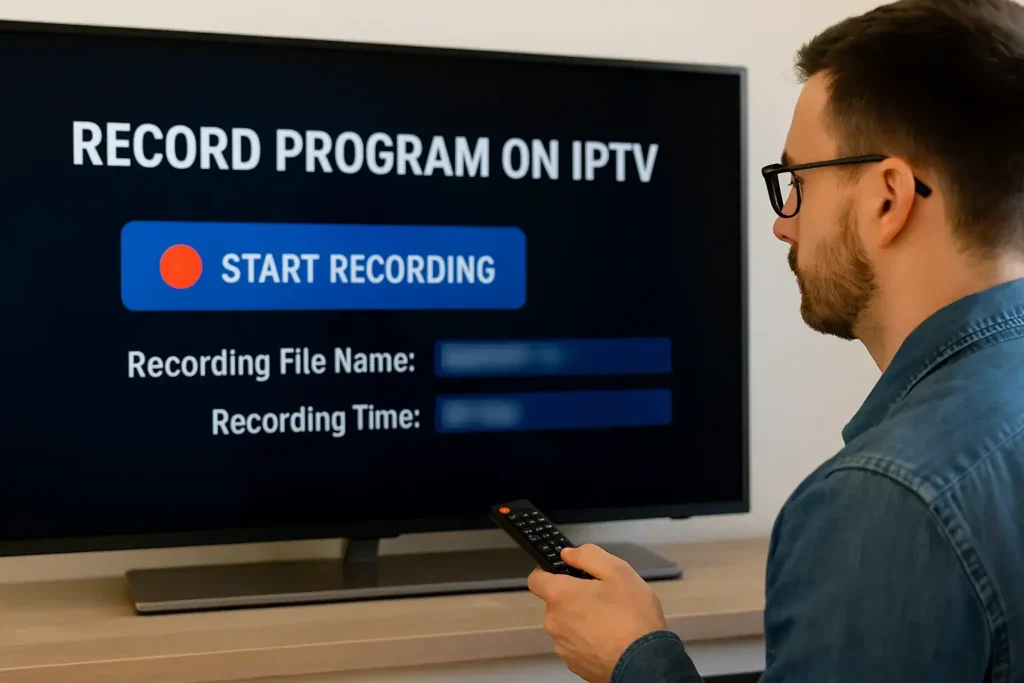
Yes, you can record IPTV content — but only if your IPTV provider supports recording. Many modern IPTV services offer built-in DVR (Digital Video Recorder) features that let you record live TV, pause and rewind, and schedule recordings directly from the Electronic Program Guide (EPG).
Recording IPTV gives you the flexibility to watch your favorite shows anytime, without missing a single episode. In this guide, we’ll explain how recording works, what you need, and how to use DVR features with DEIPTV.
If you’re new to IPTV, you may want to read this first:
👉 What Is IPTV and How It Works
1. How to Record on IPTV (Step-by-Step)
Step 1: Start Playing the Channel
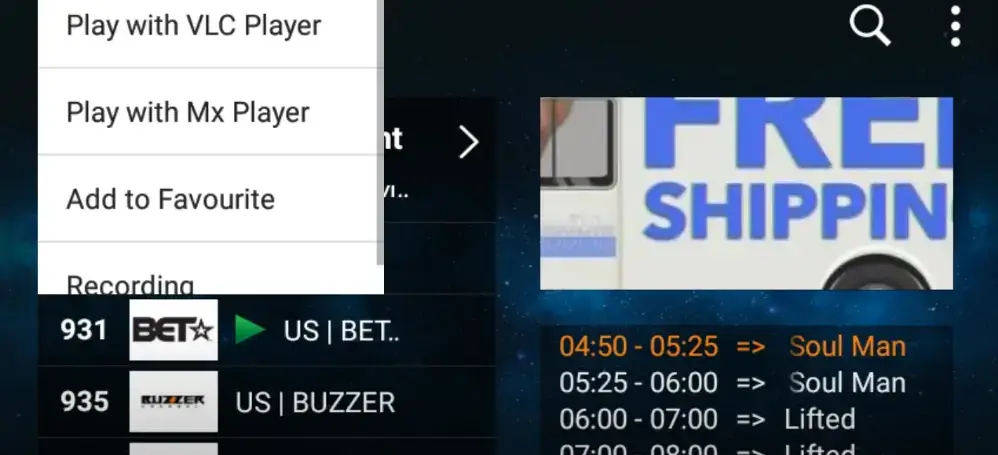
Begin by opening the live TV channel you want to record.
Step 2: Press the Record Button
Press the Record button on your remote or within the IPTV app interface. A “Recording” banner will appear, confirming that the recording has started.
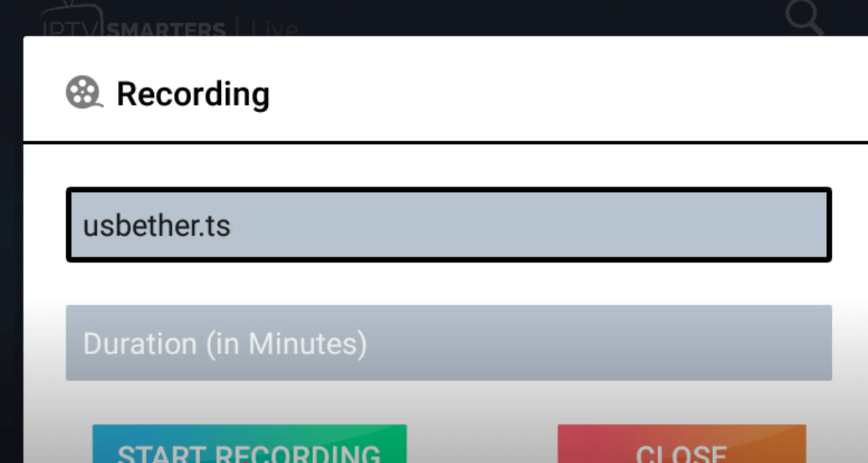
Step 3: Set Recording Details
You can usually set:
- Recording name
- Recording duration
- Start and stop time
Then press Start Recording.
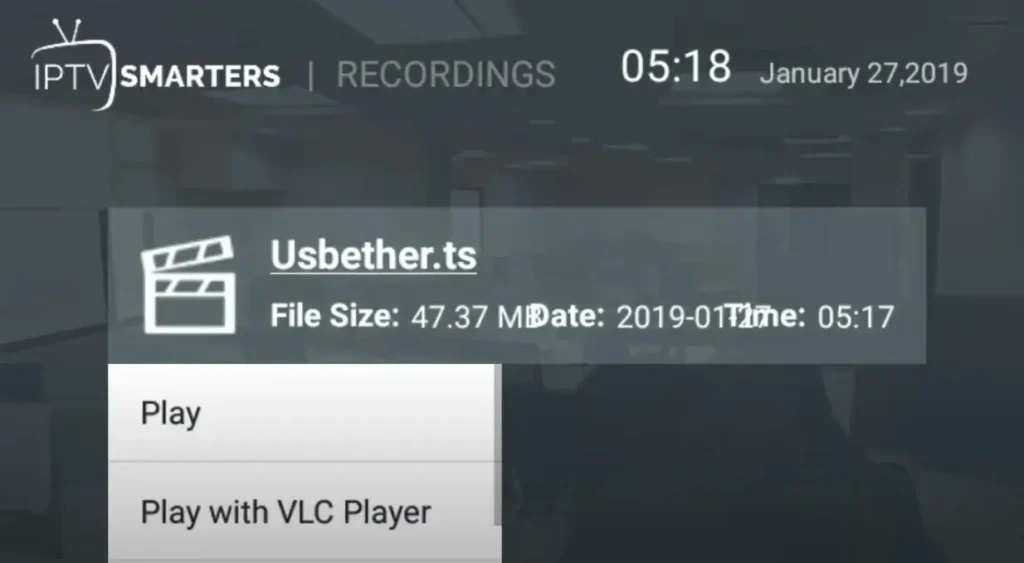
Step 4: Access Your Recorded Files
Go to your app dashboard or DVR menu and open the Recordings section. Your recorded content will be listed there.
2. Schedule Series Recording (Advanced)
If you want to record every episode of a series, follow these steps:
- Open the Guide (EPG)
- Select the show you want
- Press INFO
- Choose Record Series
- Confirm settings like channel, episode type, and stop time
- Execute the command
A confirmation banner will appear and you’ll see red dots indicating scheduled recordings.
3. Remote DVR Access (Optional)
Some IPTV systems allow remote DVR control. If your device supports it:
- Go to Menu → Applications → Remote DVR
- Create a username and password
- Save the settings
- Access the remote DVR portal via browser or mobile device
This feature lets you manage recordings remotely — delete old recordings, schedule new ones, and more.
FAQ (Frequently Asked Questions)
1. How Much Storage Do I Need for IPTV Recording?
Storage depends on the video format and quality.
Expect approximately 2–8 GB per hour.
For example, 100 hours of HD content may require 200–800 GB.
2. Can I Record Multiple Channels at the Same Time?
Most IPTV systems do not support simultaneous recordings on one device.
Recording multiple channels usually requires additional hardware or advanced software.
3. Does Recording Affect Streaming Quality?
Yes. Recording uses extra bandwidth and may reduce streaming quality if your internet connection is not strong enough.
You need enough bandwidth to handle both the live stream and the recording.
4. Can I Transfer Recorded Files to External Devices?
Yes, if your device supports external storage (USB drive).
Recorded formats like MP4 or TS affect compatibility.
Check your device’s supported file system (FAT32, NTFS, etc.).
5. Do Recorded Files Expire?
Recording retention depends on the provider.
Some platforms may auto-delete files after a certain time or when storage is full.
Most providers allow manual management, but policies vary.
Want the Best IPTV Experience?
If you want a reliable IPTV provider with high-quality streams, stable servers, and excellent customer support, check DEIPTV today.
👉 Explore DEIPTV Plans
👉 Contact Us for Support
You can also learn more about IPTV security and privacy here:
👉 IPTV Security & Privacy in 2026