
Installing IPTV Smarters Pro on Windows is one of the easiest ways to enjoy live TV, movies, series, and on-demand content directly from your PC. This app is popular among IPTV users due to its user-friendly interface, smooth performance, and easy setup.
In this guide, we will walk you through the installation and configuration steps so you can start streaming with DEIPTV quickly and safely.
📌 What You Need Before Installing
Before you begin, make sure you have:
- A stable internet connection
- A valid IPTV subscription (M3U or Xtream Codes)
- A Windows PC (Windows 10 or 11 recommended)
If you still don’t have an IPTV subscription, you can check DEIPTV plans here:
👉 DEIPTV Pricing
https://de-iptv.net/pricing/
✅ Step-by-Step: How to Install IPTV Smarters Pro on Windows
Step 1: Download IPTV Smarters Pro for Windows
- Open your web browser and visit the official IPTV Smarters Pro website or a trusted download source.
- Download the Windows version of the app.
- Wait for the installer file to complete downloading.
Step 2: Install IPTV Smarters Pro on Windows
- Go to your Downloads folder.
- Double-click the IPTV Smarters Pro installer file.
- Follow the on-screen installation steps like any regular Windows program.
- Click Finish when the installation is complete.
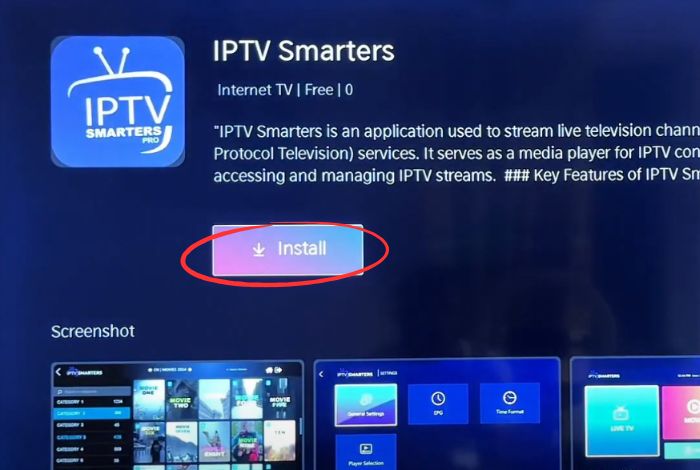
Step 3: Open IPTV Smarters Pro
- Launch IPTV Smarters Pro from the Start Menu or the desktop shortcut.
Step 4: Add Your IPTV Subscription
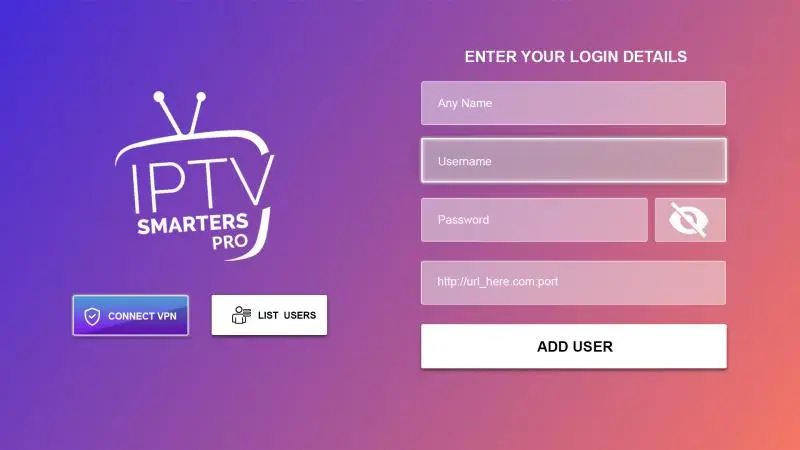
Once the app opens, you will be asked to enter your subscription details. You can log in using one of the following methods:
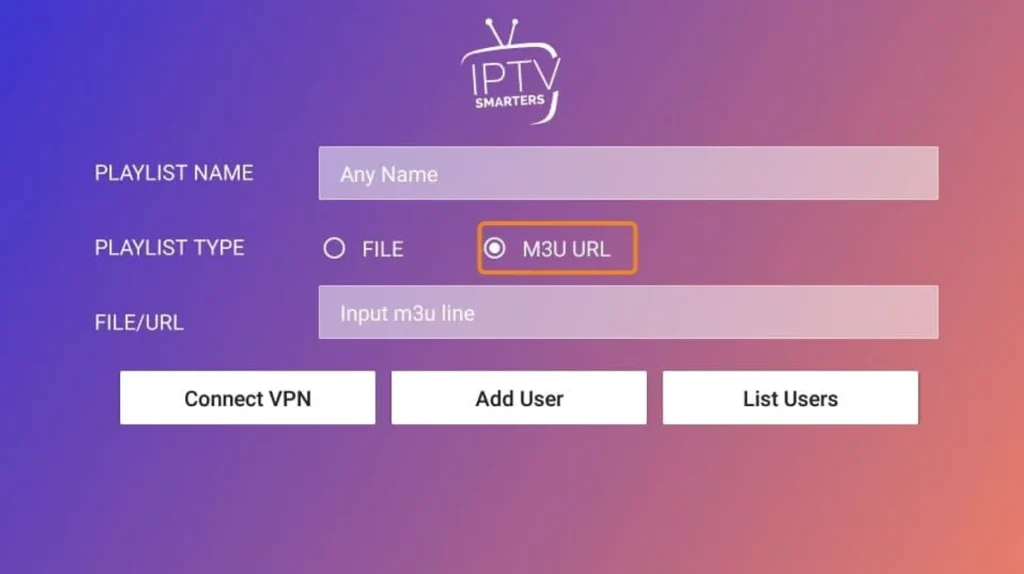
Option 1: M3U URL
Enter the M3U link provided by your IPTV provider.
Option 2: Xtream Codes API
Enter:
- Server URL
- Username
- Password
Then click Add User or Connect to continue.
Step 5: Start Streaming on Windows
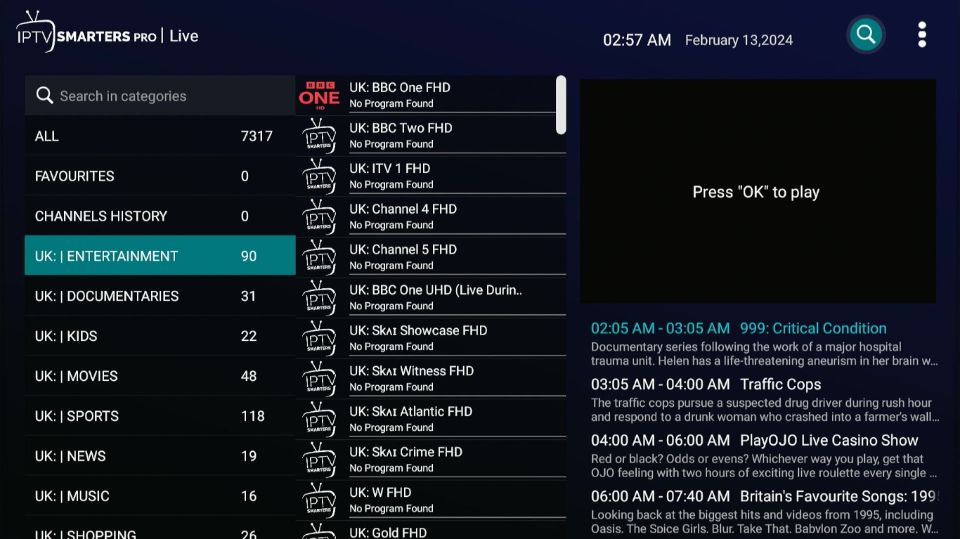
After logging in successfully, IPTV Smarters Pro will load your channels and VOD content.
Now you can enjoy:
- Live TV channels
- Sports
- Movies & Series
- On-demand content
📌 Troubleshooting (Common Issues)
Why is IPTV Smarters Pro not working on Windows?
Here are the most common reasons:
- Incorrect M3U URL or Xtream Codes
- Weak internet connection
- Expired IPTV subscription
- Server issues from the provider
If the issue continues, contact your IPTV provider for support.
✅ FAQs (Frequently Asked Questions)
Q1: Where can I find the M3U URL or Xtream Codes?
Your IPTV provider sends them after subscription. Check your email or the customer portal.
Q2: Can I add multiple IPTV subscriptions?
Yes. You can add multiple M3U links or Xtream Codes inside the app.
Q3: What devices support IPTV Smarters Pro?
Besides Windows, it supports Android, iOS, Smart TVs, and more.
Want a stable and reliable IPTV subscription?
If you’re looking for a trusted IPTV service with strong performance, DEIPTV offers flexible plans and high-quality streaming.
👉 Learn more about DEIPTV
https://de-iptv.net/about-us/
Need help or have questions? Contact DEIPTV support:
👉 https://de-iptv.net/contact-us/