IPTV Setup

Step-by-step IPTV setup on Smart TV, Firestick, Android, and PC with DEIPTV
Uncategorised

How to Set Up IPTV Easily: A Complete Beginner’s Guide with DEIPTV

Setting up IPTV is easier than many people think. With the right provider, compatible devices, and a stable internet connection, you can enjoy live TV, movies, sports, and on-demand content from anywhere. This guide will walk you step by step through the IPTV setup process and help you get the best experience with DEIPTV. If you are new to IPTV, you may also want to read What Is IPTV and How It Works for a full introduction before continuing. 1. Choose a Reliable IPTV Provider The first and most important step is selecting a trustworthy IPTV provider. A good provider ensures smooth streaming, high image quality, and responsive customer support. When choosing an IPTV service, make sure it offers: DEIPTV is designed to meet all these criteria, offering a wide channel selection and reliable performance. You can explore available plans on the DEIPTV Pricing Page to find the subscription that suits your needs. For a deeper comparison, you can also check The Ultimate Guide to IPTV Providers. 2. Make Sure You Have the Right Device IPTV works on many modern devices, making it flexible and convenient. You can use DEIPTV on: For the best performance, ensure your device software is up to date. If you want to optimize your setup further, this guide may help:👉 Understanding the Perfect IPTV Set-Up 3. Install an IPTV Application A. Firestick or Android TV You can find a detailed walkthrough here:👉 How to Install IPTV Smarters Pro on Windows👉 How to Install IPTV on IBO Player B. PC or Smartphone 4. Enter Your IPTV Subscription Details Once the app is installed, you will need to log in using the details provided by your IPTV service. You may be asked to enter: After entering the correct details, the app will load your channel list automatically. 5. Enjoy Your IPTV Service After setup is complete, you can start watching: If you are interested in sports content, don’t miss:👉 Sports Streaming with IPTV in 2026 Frequently Asked Questions (FAQ) Is IPTV Legal? IPTV itself is legal, but legality depends on the provider. Always choose a service that respects content regulations and operates transparently. Learn more in IPTV Security & Privacy in 2026. How Is IPTV Different from Cable TV? Unlike traditional cable, IPTV uses the internet to deliver content, offering on-demand viewing, better flexibility, and multi-device access. Does IPTV Require a Subscription? Yes, most IPTV services operate on a subscription basis. You can compare options on the DEIPTV Pricing Page. Can I Use IPTV While Traveling? Yes, many IPTV services work internationally. If you face restrictions, using a VPN may help. How Can I Improve Streaming Quality? For advanced quality options, see:👉 HD, UHD, and 4K Streaming in IPTV Need Help or Support? If you have any issues or questions, the DEIPTV support team is ready to help. Visit the Contact Us Page or learn more about the service on the About Us Page.
Uncategorised

How to Install IPTV Smarters Pro on Windows (2026 Guide)

Installing IPTV Smarters Pro on Windows is one of the easiest ways to enjoy live TV, movies, series, and on-demand content directly from your PC. This app is popular among IPTV users due to its user-friendly interface, smooth performance, and easy setup. In this guide, we will walk you through the installation and configuration steps so you can start streaming with DEIPTV quickly and safely. 📌 What You Need Before Installing Before you begin, make sure you have: If you still don’t have an IPTV subscription, you can check DEIPTV plans here:👉 DEIPTV Pricinghttps://de-iptv.net/pricing/ ✅ Step-by-Step: How to Install IPTV Smarters Pro on Windows Step 1: Download IPTV Smarters Pro for Windows Step 2: Install IPTV Smarters Pro on Windows Step 3: Open IPTV Smarters Pro Step 4: Add Your IPTV Subscription Once the app opens, you will be asked to enter your subscription details. You can log in using one of the following methods: Option 1: M3U URL Enter the M3U link provided by your IPTV provider. Option 2: Xtream Codes API Enter: Then click Add User or Connect to continue. Step 5: Start Streaming on Windows After logging in successfully, IPTV Smarters Pro will load your channels and VOD content. Now you can enjoy: 📌 Troubleshooting (Common Issues) Why is IPTV Smarters Pro not working on Windows? Here are the most common reasons: If the issue continues, contact your IPTV provider for support. ✅ FAQs (Frequently Asked Questions) Q1: Where can I find the M3U URL or Xtream Codes?Your IPTV provider sends them after subscription. Check your email or the customer portal. Q2: Can I add multiple IPTV subscriptions?Yes. You can add multiple M3U links or Xtream Codes inside the app. Q3: What devices support IPTV Smarters Pro?Besides Windows, it supports Android, iOS, Smart TVs, and more. Want a stable and reliable IPTV subscription? If you’re looking for a trusted IPTV service with strong performance, DEIPTV offers flexible plans and high-quality streaming.👉 Learn more about DEIPTVhttps://de-iptv.net/about-us/ Need help or have questions? Contact DEIPTV support:👉 https://de-iptv.net/contact-us/

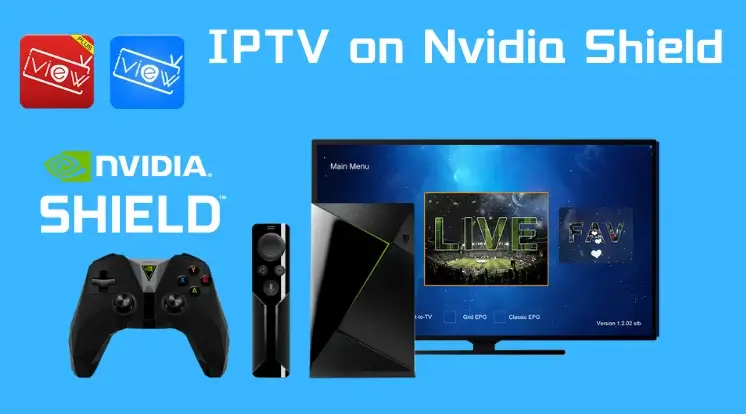
Guide showing how to install DEIPTV on NVIDIA Shield TV
Uncategorised

How to Install DEIPTV on NVIDIA Shield

Installing DEIPTV on an NVIDIA Shield is simple thanks to the device’s Android-based system. You can stream live TV and Video on Demand (VOD) content using compatible IPTV apps from the Google Play Store or by sideloading. Follow this step-by-step guide to get started. Step 1: Allow Apps from Unknown Sources (if needed) If you want to sideload an IPTV app (install an app outside the Google Play Store): Note: If you install the app directly from the Google Play Store, this step is not required. Step 2: Install an IPTV Player from Google Play Store Popular IPTV players compatible with DEIPTV include IPTV Smarters, TiviMate, or VLC Media Player. Step 3: Enter Your DEIPTV Subscription Details You can find all subscription information and support via DEIPTV Contact. Step 4: Start Streaming DEIPTV Optional: Sideloading an IPTV App If your IPTV app isn’t available on Google Play: Tips for Smooth Streaming Installing DEIPTV on your NVIDIA Shield ensures a seamless, high-quality IPTV experience with access to a wide range of live TV channels and on-demand content.

Step-by-step setup of IPTV on a MAG Box device
Uncategorised

How to Install DEIPTV Service on a MAG Box

Setting up DEIPTV on a MAG Box is one of the easiest ways to enjoy your favorite channels and Video on Demand (VOD) content. MAG devices are specially designed for IPTV, making them ideal for high-quality streaming. Follow this step-by-step guide to get started. Step 1: Connect Your MAG Box to TV and Internet Step 2: Locate Your MAG Box MAC Address Your MAG Box’s MAC address is needed to activate your DEIPTV subscription: Step 3: Register Your MAG Box with DEIPTV Step 4: Configure Your MAG Box Step 5: Restart Your MAG Box Step 6: Enjoy DEIPTV Troubleshooting Tips Setting up DEIPTV on a MAG Box gives you a smooth, reliable streaming experience and access to a wide range of channels and on-demand content.

Scroll to Top